Appearance
Streamit Card Loader
Operator Manual
SD card loader for radio devices — Windows
How to prepare a Streamit SD card: pick the card, enter the device ID, run the transfer, and read the result. Everything you need to load a card correctly — and to recognise when a card is not complete.
| Audience | Operators preparing SD cards for Streamit players |
| Scope | Day-to-day use of the application |
| Issued | 10 September 2026 |
Contents
- Streamit Card Loader
1. What the application does
The Streamit Card Loader fills an SD card with the music a specific Streamit player has to play. You give it two things — the card and the player's device ID — and it does the rest:
- It looks up the station registered for that device in the Streamit database. The device ID is searched as the serial
PTL-<device ID>. - It collects every audio track reachable from the station's playlists and works out the exact file name each track must have on the card.
- It downloads the files from the media server, keeping a local copy so the next card for the same music is much faster.
- It copies them onto the card and reports what was downloaded, skipped and failed.
Important — file names matter
A player only recognises a card whose files are named exactly as it expects. The application takes care of this. Files must therefore be put on the card by this tool and not copied by hand.
2. Before you start
Make sure you have:
- The SD card, inserted in the card reader. It must be formatted as FAT32. The application can format it for you; see Formatting a card as FAT32.
- The device ID of the player, as printed on the device or taken from the work order — for example
BCB68F. Type it in upper case. - A working network connection. The application reads station data from the company database and downloads audio from the media server.
Nothing else needs configuring: the application is delivered ready to connect.
Database or connection error at startup?
This is an installation or network matter. Contact IT.
3. The main window
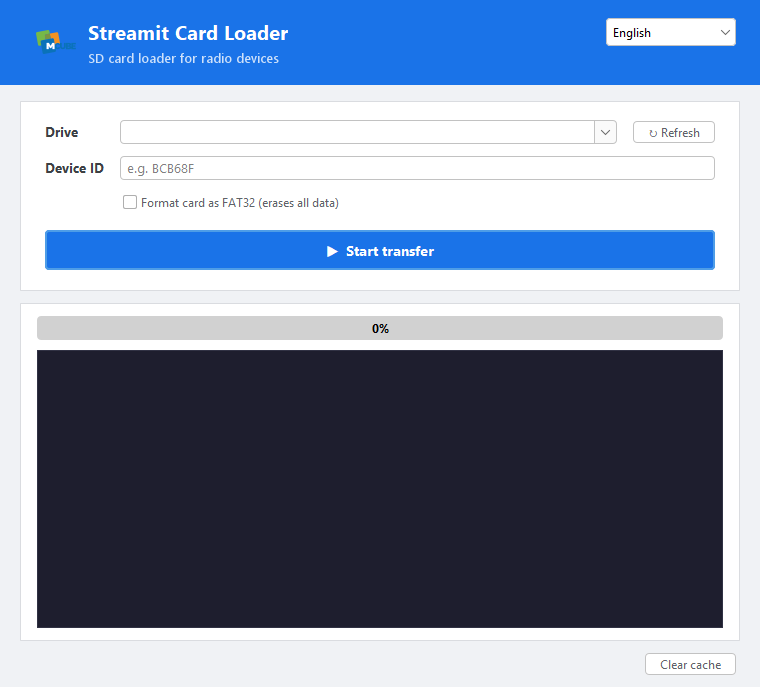 The main window at rest, before a transfer.
| Element | What it is |
|---|---|
| Language | Top-right selector: English, Italiano, Français, Español, Nederlands. On first start the application follows the language of the PC; you can switch at any time, including mid-session. |
| Drive | Drop-down of the FAT32 drives detected on the PC. Pick the SD card here. The field is editable, so you can also type a path directly, for example F: or any folder when testing. |
| ↻ Refresh | Re-scans the PC for drives. Click it if you inserted the card after opening the window. |
| Device ID | The player identifier, e.g. BCB68F. The station is looked up by the serial PTL-<device ID>. |
| Format card as FAT32 | When ticked, the card is erased and reformatted before loading. Always asks for confirmation. See section 6. |
| ▶ Start transfer | Validates your input and begins. Disabled while a transfer is already running. |
| Progress bar | Shows done / total tracks, for example 128 / 318. |
| Log area | Live, line-by-line record of the run. See section 5. |
| Status line | Bottom of the window: the final summary, prefixed with ✓, ⚠ or ✗. |
| Clear cache | Bottom-right: empties the local download cache. See section 7. |
4. Loading a card, step by step
1. Insert the SD card
Insert the SD card into the reader, then open Streamit Card Loader.
2. Select the drive
Open the Drive list and pick the SD card. If it is not there, click ↻ Refresh.
Check the drive letter in Windows Explorer before continuing.
This is the one step where a mistake can cost you data.
3. Enter the device ID
Enter the device ID in the Device ID field, in upper case.
4. Decide about formatting
Leave Format card as FAT32 unticked to add to and refresh the card as it is.
Tick it only when the card must be wiped first. Read section 6 before doing so.
5. Start the transfer
Click ▶ Start transfer.
The log will show:
- the station name;
- the number of tracks to transfer;
- one line for every file.
6. Wait for the summary
Do not remove the card while the progress bar is moving.
If you try to close the window during a transfer, the application asks:
A transfer is still in progress. Close anyway?
Choose No and let the transfer finish.
7. Check the result
Check the summary before releasing the card.
A card is only ready to ship when
Failed: 0.
8. Eject the card
Eject the card through the operating system, then remove it.
Tip: A second card for the same music is much faster because files already stored in the local cache are not downloaded again.
5. Reading the log and the summary
Each file produces one line in the log:
text
↓ 128/318 DOWNLOADED 7B110D3F8E96C22B_Artist_Track_norm19_mono.mp3
→ 129/318 SKIPPED    06BA23079C1058CB_Artist_Other_Track_mono.mp3
✗ 130/318 FAILED     82771E57E8517FBD_Artist_Third_Track_mono.mp3
File outcomes
| Icon | Outcome | Meaning |
|---|---|---|
| ↓ | DOWNLOADED | The file was fetched and written to the card. This is the normal outcome. |
| → | SKIPPED | Nothing to do: the file is already on the card with the right name, or the database row has no usable file name. Not an error. |
| ✗ | FAILED | The file could not be obtained and is missing from the card. Each download is retried up to three times and checked for size and checksum before being given up on. Usually this means the file is missing on the media server. |
When the run ends, the status line shows something like:
text
✓ Downloaded: 315 | Skipped: 0 | Failed: 3 | Total: 318 | Elapsed: 3:14Is the card ready?
| Icon | Result |
|---|---|
| ✓ | Failed: 0 — every track is on the card. The card is ready. |
| ⚠ | Failed is greater than 0 — the card is incomplete. Do not ship it. |
| ✗ | The run stopped on an error and the line reads ERROR: …. No usable card was produced. |
If
Failedis greater than0
Note the file names from the log and run the transfer again on the same card. Tracks that already arrived are skipped, so the retry is quick and only the missing tracks are attempted.If the same files fail again, they are missing on the media server. Report the station and the file names, and do not release the card.
Other lines you may see
| Line | What it means |
|---|---|
Station: … (id=…) | The station the device ID resolved to. Worth checking — it confirms you typed the right ID. |
Tracks to transfer: … | How many unique tracks the station's playlists add up to. |
… is player X, but station Y still has player Z as current | The card is loaded anyway, but the station's current player is out of date in the database. Report it so the record can be corrected. |
Missing on S3: … | That track does not exist on the media server. It is counted as FAILED. |
6. Formatting a card as FAT32
Ticking Format card as FAT32 wipes the card before loading it and gives the volume the device ID as its label.
Use formatting for:
- a new card;
- a card coming back from another station;
- a card that misbehaves.
⚠ Warning — formatting permanently erases everything on the selected drive.
Confirm the drive letter in Windows Explorer before ticking the box.
The application asks:
text
ALL data on <drive> will be DELETED. Proceed with formatting?This dialog is your last chance to stop.
Built-in safety guards
Two guards are always active and cannot be bypassed:
- The application refuses to format the system disk — the disk the operating system runs from.
- It refuses to format a drive larger than 128 GB, on the assumption that something that large is not the intended SD card.
If a refusal appears — currently worded in Italian — you almost certainly selected the wrong drive. Close the dialog, select the SD card and try again.
Genuinely larger cards require an IT change to the limit.
Other things to know
- Formatting may require administrator rights.
- If it fails with
Format failed. See the log for details., run the application as administrator and retry. - A card that is already FAT32 does not need formatting to be refreshed. Leave the box unticked and existing files are reused.
7. Clearing the download cache
Downloaded audio is stored locally on the PC so later cards do not need to download the same music again.
The cache is located at:
text
C:\Users\<your user>\.streamit-card-loader\cacheThe cache is never emptied automatically.
Click Clear cache to wipe it. The application asks for confirmation and then reports something like:
text
Cache cleared: 4128 file(s), 3214662144 bytes freed.Clear the cache when
- a track was re-mastered and re-published under the same name, but cards keep getting the old audio;
- you suspect a corrupted cached file;
- the cache folder has grown too large for the disk.
Clearing the cache does not touch any SD card.
It only means the next transfer must download everything again, so that transfer will take longer.
8. Troubleshooting
| Symptom | What to do |
|---|---|
| The SD card is not in the Drive list | Re-seat the card and click ↻ Refresh. Only FAT32 drives are listed. If the card is new or was formatted elsewhere, format it as FAT32. You can also type the path by hand. |
Please enter the Device ID. | The Device ID field is empty. |
Invalid drive path. / Drive does not exist: … | The typed path is not a real drive or folder. Pick the card from the list instead. |
Drive is not writable: … | The application write-tests the drive before starting. Check the card's physical write-protect switch, then try another card. This often means a worn-out card. |
No station found for serial PTL-… | Re-check the ID character by character: upper case, and watch 0 versus O. If it is correct, the device is not registered yet. Escalate rather than guessing another ID. |
| Station has no tracks to load / no playlist reached | The station exists but has no usable playlist. This is a platform configuration matter, not something the loader can fix. Report the station. |
| Several FAILED lines | Re-run on the same card first. Already-copied tracks are skipped. If the same files fail again, report the station and failing file names. |
| Everything fails, or the run stops immediately | Usually a network issue: neither the database nor the media server is reachable. Check the PC's connection, then contact IT. |
| Formatting is refused with an Italian message | A guard stopped it: the drive is the system disk or is larger than 128 GB. Select the SD card. If larger cards are genuinely required, IT must raise the limit. |
Format failed. See the log for details. | Run the application as administrator and retry. If it still fails, the card is probably faulty. |
| Cards keep getting an old version of a track | The old file is in the local cache. Click Clear cache and run again. |
| A database or connection error appears as soon as the application opens | The installation on the PC is incomplete or the network is blocked. This is an IT matter. |
When escalating an issue
Include:
- the device ID;
- the station name from the log;
- the summary line;
- the failing file names.
Together these are usually enough to identify the cause without reproducing the run.
9. Message reference
| Message | Where / meaning |
|---|---|
Station: … (id=…) | Log — the station that was found. |
Tracks to transfer: … | Log — total unique tracks for this station. |
Formatting … (label=…) | Log — formatting started; the label is the device ID. |
Format completed. | Log — the card was formatted; loading follows. |
Format failed. See the log for details. | Formatting did not work; nothing was loaded. |
Missing on S3: … | Log — that track is absent on the media server; counted as FAILED. |
Downloaded: … | Skipped: … | Failed: … | Total: … | Elapsed: … | Status line — the final result. Failed: 0 means the card is complete. |
ERROR: … | Status line — the run stopped; no usable card. |
Cache cleared: … file(s), … bytes freed. | The local cache was emptied. |
A transfer is still in progress. Close anyway? | You tried to close the window mid-run. Choose No and let it finish. |
Streamit Card Loader — Operator Manual · MCube Digital · 10 September 2026.
Installation, configuration and build are covered separately in
INSTALL.md.